
RealDefense
Partner Success Portal
Portal Sections
Quick navigationProducts
Full product catalog, demo licenses, white label order forms, and feature sheets.
Implementation & Launch
Step-by-step guides, project plans, API docs, and white label configuration.
Campaign Creative
Creative assets, customization requests, and co-branded campaign resources.
Partner Support
Escalation processes, objection handling playbooks, and technical FAQs.
Best Practices
KPIs, engagement guides, campaign benchmarks, and optimization frameworks.
Request Customization
Submit a custom creative request for your specific audience and brand.
Products
PublicRealDefense's full partner product portfolio — including DTC versions, white label options, and demo license requests.
Implementation & Launch
Templates + Partner-SpecificAll the technical and operational resources needed to go live with a RealDefense integration.
Project Plan
TemplateFull task list covering all workstreams from initial scoping through launch. Owners are split between RealDefense (RD) and the partner.
1. Scope
| Task | Owner |
|---|---|
| Project kickoff | RD / Partner |
| Provide white label documentation | RD |
| Provide Licensing API documentation | RD |
| Provide SmartScan documentation | RD |
| Provide marketing best practices | RD |
| Review project documentation | Partner / RD |
| Identify project stakeholders | Partner |
| Define KPIs and success metrics | RD / Partner |
2. SmartScan Integration
| Task | Owner |
|---|---|
| Define scan trigger timing | Partner |
| Determine scan frequency (e.g., every 10 days, twice a month) | Partner |
| Integrate DLL | Partner |
| Parse scan results | Partner |
3. SmartScan In-App Messaging
| Task | Owner |
|---|---|
| Assess real-time notification capability | Partner |
| Define messaging threshold for each use case | Partner |
| Define messaging triggers (post-SmartScan, on startup, etc.) | Partner |
| Determine messaging frequency | Partner |
| Assess fixed vs. dynamic messaging capability | Partner |
| Determine dynamic messaging logic | Partner |
| Assess telemetry capabilities (views, clicks, dismiss, etc.) | Partner |
| Assess A/B testing capabilities | Partner |
| Draft message copy variations (junk, registry, memory, multi-issue) | Partner / RD |
| Design UI components for messaging | Partner / RD |
| Implement A/B tests if supported | Partner |
4. White Label Development
| Task | Owner |
|---|---|
| Define release build for white label | RD |
| Define partner requirements (layout, branding, URLs) | Partner |
| Create eComm ID | RD |
| Build white label SM product | RD |
| Test white label SM product | RD |
| Deliver test build to partner | RD |
| Integrate and test product | Partner |
| Provide build feedback / report issues | Partner |
| Resolve reported bugs | RD |
| Deliver updated build, partner sign-off, signing exchange | RD / Partner |
| Final release candidate testing | RD |
5. Licensing API
| Task | Owner |
|---|---|
| Define API requirements | RD / Partner |
| Generate and test partner API endpoints | RD |
| Add partner to API developer portal | RD |
| Review API endpoints | Partner |
| Integrate API endpoints into purchase environment (~4–6 weeks) | Partner |
6. Marketing / eComm Design & Development
| Task | Owner |
|---|---|
| Develop marketing plan and best practices | Partner / RD |
| Define purchase and post-purchase flows | Partner / RD |
| Design & build landing pages, cart, order confirmation, activation email, exit offer, save flow | Partner / RD |
| Create source codes, SKUs, and tracking URLs | Partner |
| Test all eComm pages and flows | Partner |
| Deploy eComm pages to production | Partner |
7. Testing & Launch
| Task | Owner |
|---|---|
| Joint QA (DLL stability, performance, UI integration) | Partner / RD |
| Confirm KPI tracking (scan rates, impressions, clicks, conversions) | Partner / RD |
| Address bugs or UI issues | Partner / RD |
| Define support plan, train support team | Partner / RD |
| Soft launch to limited user base; monitor KPIs; go/no-go decision | Partner / RD |
| Full launch rollout, post-launch weekly sync series | Partner / RD |
| Monitor KPIs, review performance, share learnings | Partner / RD |
Milestone Tracker
| Milestone | Status |
|---|---|
| Scope | TBD |
| White Label Development | TBD |
| SmartScan Integration | TBD |
| SmartScan In-App Messaging | TBD |
| Marketing / eComm Design | TBD |
| eComm Development | TBD |
| End-to-End Testing | TBD |
| Soft Launch | TBD |
| Launch | TBD |
White Label Configuration Guide
TemplatePurpose & Philosophy
This document defines the supported configuration model for the System Mechanic White Label offering. White labeling is visual and brand-level only — all implementations preserve the same features, workflows, and structure as System Mechanic.
- Simplify decision-making
- Clearly define what is supported
- Prevent configuration ambiguity
- Ensure predictable delivery timelines
- Enable strong brand alignment without altering product behavior
- Layout, feature, or navigation changes
- Custom workflows or UI components
- Typography, spacing, or animation changes
What's Included
| Label | Area | What Changes | Required Input Format |
|---|---|---|---|
| A | App Name | Text | Plain text string — exact product name |
| B | Header Logo | Image | SVG (preferred) or PNG (transparent). Light & dark variants recommended |
| C | App Icons | .ICO | Windows .ICO — must include 16, 32, 48, 256 px sizes |
| D | Header Background | Color | HEX code (e.g. #0F1E2D) |
| E | Sidebar Background | Color | HEX code — should meet contrast guidelines |
| F | Sidebar Icons & Text | Color | HEX code — applied to icons and labels |
| G | Active Sidebar State | Color | HEX code — active/selected nav indicator |
| H | Primary Button | Color + hover | Two HEX values required (default + hover) |
| I | Toggle Switch | ON/OFF colors | HEX (ON + OFF); track color optional |
| J | Main Background | Color | HEX code — app canvas background |
| K | Card Backgrounds | Color | HEX code — cards/panels |
| L | Primary Text | Color | HEX code — headings and primary labels |
| M | Secondary Text | Color | HEX code — descriptive and helper text |
| N | Status Colors | Color | HEX (Good / Warning / Critical) — three values required |
| O | Progress Indicators | Color | HEX code — spinners, progress rings |
Color Palette Behavior
Partners provide a primary brand color and major visual selections. The remaining UI colors are automatically defined using a system-generated palette ensuring consistency, accessibility-safe contrast, and a clean professional UI. Partners may override any individual color token from the generated palette.
Required Inputs
- Final product name
- Brand / company name
- Logo and icon assets
- Supported language list
- Primary brand color
- Secondary brand colors (if applicable)
- Any explicit palette overrides (optional)
Naming Lock Policy
The product name must be final before development begins. Name changes after work begins impact installers, binaries, file paths, and references — requiring rework and resetting delivery timelines.
Configuration Map
A visual Configuration Map showing how each of the above inputs (A–O) corresponds to specific areas of the System Mechanic UI is available as a downloadable reference. Contact your Partner Account Manager to request the latest version, or submit a request via the Request Customization form.
White Label Signing Process
TemplateThis process applies to the initial delivery and all subsequent updates. Partners testing an unsigned build must disable all AV software/checks, as unsigned software will be flagged.
Signing Workflow
Licensing API Sample Documentation
Templateiolo will provide an API key (subscription key) and partner-specific base URL. Placeholders in {brackets} should be replaced with actual values.
Base URL
https://iolo.azure-api.net/partnerName/v11. Create License
POST {BaseURL}/licenses
| Field | Type | Required | Notes |
|---|---|---|---|
| sku | string | Yes | See endpoint #6 (Retrieve SKUs) |
| userEmail | string | Yes | Standard version |
| orderId | string | No | Arbitrary non-empty string |
Alternative: Use userid (integer, required) instead of email if the partner prefers user identification without email.
2. Retrieve License
GET {BaseURL}/licenses/{licensekey} — Returns created date, expiration date, disabled status, SKU, and user email.
3. Upgrade License
POST {BaseURL}/licenses/{licensekey}/upgrade?sku={sku_upgrade_to}&orderid={orderid}
Converts a trial key to a paid key, or upgrades to a higher-tier SKU.
4. Renew License
POST {BaseURL}/licenses/{licensekey}/renew?orderid={orderid}
Extends a license when the user decides to renew.
5. Enable / Disable License
PATCH {BaseURL}/licenses/{licensekey}/enable
PATCH {BaseURL}/licenses/{licensekey}/disable
Reserve the disable endpoint for edge cases such as key abuse. Do not use for routine cancellations — allow keys to expire naturally instead.
6. Retrieve SKUs
GET {BaseURL}/skus — Returns all available SKUs for the partner, including name, description, and license model.
7. Get Activation Report (Optional)
GET {BaseURL}/activations?begin={date_begin}&end={date_end}
Optional. Designed for partners offering trials to monitor activations over any date/time period. Returns timestamp, expiration date, license model, license key, and user ID.
Error Codes
| Code | Meaning |
|---|---|
| 200 | OK — Success |
| 400 | Bad Request |
| 401 | Unauthorized |
| 404 | License Key Not Found |
| 500 | Internal Server Error |
Configuration Decisions
Before integrating the Licensing API, partners should align with RealDefense on the following decisions.
Product Term Start Date
When should the 1-year product period begin — on purchase date (recommended) or when the user enters the license key to activate the product?
Default behavior: The expiration date is null at key generation. When the user activates the product, the expiration date is set at that moment, and the 1-year countdown begins. If an expiration date was set at purchase, it will not be overridden at activation.
Auto-Renewal and Cancellation
When a customer cancels, we recommend disabling auto-renewal but allowing the license key to remain active until its natural expiration date. This ensures uninterrupted product access without requiring any changes to the key itself. We do not recommend disabling the key directly — see below.
Disable and Enable Endpoint Usage
The disable endpoint can be used to cancel a key, but doing so would require the partner to re-enable the key if the customer later renews. We recommend reserving the disable endpoint for edge cases such as reported key abuse. In those cases, please contact RealDefense for support in generating a replacement key.
Date and Formatting Requirements
Does the Licensing API need to support specific date formats or other custom formatting requirements in its requests or responses?
UserID and OrderID Association
Should a non-PII identifier such as a UserID or OrderID be linked to each license key for tracking or validation purposes? If so, please confirm the preferred identifier type and whether it should be passed at key generation or activation.
Default behavior: A non-PII identifier is not included by default and must be explicitly passed if needed. Customer email will be used by default.
Download Manager Overview
TemplateFunctionality Overview
The Download Manager is a lightweight module that handles reliable delivery, installation, and post-processing of iolo product components. It ensures secure and efficient downloading, launches the installer, and passes the user license key — providing a lower-friction installation experience. Usable in both post-purchase flows and account management systems. Older devices (Windows 7 or 8) receive a certified legacy installer URL.
How It Works — Purchase Funnel
SKU Configuration Parameters
| Parameter | Description |
|---|---|
| downloadURL | URL used to download the installer. Does not need to reside on iolo's domain. |
| silentInstall | Boolean. If true, launches and licenses the product silently. |
| autoStart | Boolean. If true, automatically launches the product after installation. |
| startDelay | Integer (seconds). Wait time before auto-launching after install. Ignored unless autoStart is true. |
Edge Cases — Default Values
Reporting API Sample Documentation
TemplateThe Telemetry API provides installation, activation, and activity data for partner reporting. iolo will provide an API key and partner-specific base URL.
Base URL
https://iolo.azure-api.net/[partner]/telemetry/v11. Get Installation Report
GET {BaseURL}/installations?startDate={startDate}&endDate={endDate}
Parameters: startDate (required, YYYY-MM-DD), endDate (optional)
Response includes: timestamp, version, city/state/country, user ID, install result (Success/AlreadyInstalled/Cancelled/Failure/Conflict), install type (Install/Uninstall/Update), CPU/disk/memory/graphics scores, hardware specs, OS architecture and version.
2. Get Activation Report
GET {BaseURL}/activations?startDate={startDate}&endDate={endDate}
Response includes: timestamp, version, user ID, activation result (Ok / ActivationKeyInvalid / InstallCountExceeded / ExpiredKey / ConnectionError), serial number.
3. Get Activity Report
GET {BaseURL}/activity?startDate={startDate}&endDate={endDate}
Response includes: user ID, serial number, user sessions, active care sessions, registry items repaired, disk space freed, internet clutter removed.
Error Codes
| Code | Meaning |
|---|---|
| 200 | OK — Success |
| 400 | Bad Request |
| 401 | Unauthorized |
| 500 | Internal Server Error |
White Label Implementation Guide
TemplateExecutive Summary
This guide outlines the implementation approach for launching the RealDefense white-labeled System Mechanic PC optimization product and the RealDefense SmartScan™ within a partner environment. It provides detailed guidance on integration steps, responsibilities, testing, marketing, and support to ensure a successful rollout.
Implementation Timeline & Milestones
| Milestone | Target | Owner |
|---|---|---|
| Project Scope & Kickoff | 7 Days | All |
| White Label Build | ~90 days | RD Engineering |
| SmartScan Integration | ~90 days | Partner Engineering |
| Licensing API Configuration | ~120 days | Partner Engineering |
| Purchase & Onboarding Flow | ~120 days | Partner Marketing and Ecom |
| Testing & QA | ~130 days | Partner QA |
| Launch Readiness Review | ~145 days | All |
| Go-Live | ~145 days | All |
| Post-Launch Review | 30 days post-launch | Product, Success, Support |
Roles & Responsibilities
| Role | Responsibilities | RealDefense Contact |
|---|---|---|
| Partner Manager | Primary liaison, partner feedback, launch readiness monitoring | Carson Complin, Sr. Director of Partner Success |
| Project Manager | Planning, timelines, cross-functional coordination | Jill Braun, Partner Manager |
| Product Manager | Requirements, go-to-market activities, launch readiness | Kartik Ganesh, Product Management |
| Engineering Lead | White label integration, technical development, partner deployment | Michael Molina, Project Manager |
| QA Lead | Testing plans, integration verification, pre-launch issue resolution | Andy Bernardo, Director of QA |
| Marketing Lead | Go-to-market strategy, eCommerce pages, campaign alignment | Susan Jeffery, Content & Partner Marketing Manager |
| Support Lead | Post-launch support, FAQs, escalation management | Jose Martinez, Sr. Director of Enterprise Support |
| Executive Sponsor | Overall direction, scope approval, organizational alignment | Eytan Urbas, VP Partner Success |
Project Scope
- System Mechanic White Label (standard configuration, 10 supported languages, latest version)
- RealDefense SmartScan™ DLL integration into partner product
- One-year product licenses via Licensing API or Batch Keys
- Download Manager with automatic license injection
- Monthly reporting: new sales, cancellations, renewals
- Support structure: Tier 1 (partner), Tier 2 (RealDefense)
- Additional UI/UX customization beyond standard options
- Languages beyond the 10 supported
- Non-annual license durations (monthly, multi-year)
Technical Implementation
System Mechanic White Label — PC Requirements
- Windows® 11 or 10
- Minimum 512 MB RAM (2 GB optimal)
- 100 MB available hard disk space
- Internet connection (required for license activation)
- Windows "Administrator" user account
- Latest Windows updates fully applied
Licensing API — Key Decisions
- Product Term Start Date: Determine whether the 1-year period begins at purchase or when the user activates the key. Default: activation triggers the countdown.
- Auto-renewal & Cancellation: Recommended — disable auto-renewal on cancellation but allow the license to remain active until natural expiration.
- Disable/Enable Endpoint: Reserve for edge cases (e.g., key abuse). Contact RealDefense for replacement key generation.
- Date Formatting: Confirm whether specific date formats are needed in API requests/responses.
- UserID/OrderID Association: Confirm whether a non-PII identifier should be linked to each license key for tracking.
SmartScan Integration — Key Decisions
- Trigger Timing: When should SmartScan run? (e.g., app launch, machine idle, user-initiated action)
- Alert Thresholds: Define issue severity levels that trigger user messages. Sample thresholds: memory below 25–30%, 10+ registry issues, 100MB+ junk files.
- Message Frequency: Recommended 1–2 times per month to avoid alert fatigue.
- Dynamic Content: Can messages be personalized? (e.g., "You have 1.4GB of junk files")
Marketing Considerations
- Pricing strategy: Full/renewal pricing, acquisition discounts
- Cart flow: Direct-to-cart recommended
- Renewal policy: Auto-renewal recommended
- Free trial policy: 30-day free trial with auto-conversion recommended
- Exit offer: Free trial recommended
- Return policy: 30-day money-back guarantee recommended
- Email & retargeting: Define campaign strategy early
- Cross-sell/upsell: Define approach (e.g., Candy Rack integration)
Onboarding User Flow (Post-Purchase)
Testing & Validation
| Scenario | Expected Result |
|---|---|
| SmartScan triggers and scans issues | JSON output file returns with results |
| SmartScan results above threshold | Message delivered with CTA |
| SmartScan results below threshold | No message delivered |
| SmartScan CTA click | Redirects to appropriate offer page |
| User abandons LP/Cart | Exit offer is shown |
| User purchases via Cart | License key generated |
| Download initiated | Product downloads to folder |
| Installation EXE initiated | Product installs and activates |
| Start Clean | Product scans and repairs identified issues |
| Product cancellation | Renewal process terminated |
| Product renewal | License key extended additional 1 year |
Support Structure
Launch & Ongoing Partnership
Launch Strategy
- Soft Launch: Consider a limited rollout before full deployment — e.g., release marketing pages only without triggering SmartScan, or implement SmartScan notifications to a controlled population.
Key Metrics to Track
- SmartScan Volume & Notification Impressions
- Click-Through Rates & Landing/Cart Page Views
- Cart Abandonment Rates
- Purchase, Installation & Activation Rates
- Support Issues
Quarterly Reviews
RealDefense participates in regular quarterly reviews to explore growth strategies, improve activation rates, share best practices, and introduce new products and features.
SmartScan™ Guide
TemplateWhat is RealDefense SmartScan™?
RealDefense SmartScan™ is a lightweight, embedded diagnostic DLL built on iolo's System Mechanic technology. It seamlessly integrates with partner applications to detect system inefficiencies and optimization opportunities — without making any changes to the system.
As a PC health assessment tool, SmartScan enables hardware manufacturers and software companies to build an additional revenue stream that scales with the size of their customer base.
- Memory & CPU usage — Detects performance bottlenecks
- Junk files — Identifies space-consuming clutter
- Registry issues — Flags invalid or outdated entries
- System Diagnostics — Real-time system health insights
- User Engagement — Actionable scan results that prompt interaction
- Revenue Generation — Surfaces upsell opportunities aligned to user-specific needs
How It Works
Marketing Best Practices
a. Timing is Key
- Set a thoughtful cadence — e.g., every 10 days or twice a month
- Determine when to run the scan (boot, machine idle, customer-initiated action)
- Trigger the offer shortly after scan completes
- Deploy exit offers to re-engage hesitant users
b. Target Effectively
- Memory below 25–30%
- Ten or more registry issues
- 100MB or more of junk files
- System conditions change — repeated scans ensure users are accurately messaged as issues arise
c. Messaging Strategy
- Visual indicators (progress bars, warnings)
- Relatable, non-technical language
- Test personalized CTAs:
"Your system has {XX} registry issues. Unresolved registry issues could be slowing down your computer."
"Your available memory is {X%}. Available RAM below 30% could be impacting your computer's speed and performance."
"You have {XX GB} of junk files cluttering your system. Clean up today with [Product Name]."
d. Optimize CTAs
- Bold, high-contrast buttons
- Test clear action verbs: "Fix Now", "Resolve Now"
e. Offer a Clear, Risk-Free Purchase Path
- Maintain message continuity from alert to landing page
- Money-back guarantees
- Social proof (e.g., "Trusted by 80M+ users")
- Pre-populate cart information to minimize friction
- Offer free 30–60 day trials at cart or landing page abandonment
Frequently Asked Questions
Implementation Kickoff Deck
TemplateReference deck used for the initial kickoff call with new partners. Covers the full partnership model, team structure, milestones, and KPIs.
Milestones
See the White Label Implementation Guide for the full milestone timeline from project scope through post-launch review.
RealDefense Team Responsibilities
- Build and maintain System Mechanic and Download Manager
- Provide Batch Key Files and/or Licensing API access
- Provide SmartScan DLL and technical integration support
- Provide Tier 2 technical support post-launch
- Deliver monthly reporting by the 15th of each month
- Conduct quarterly business reviews
Partner Team Responsibilities
Product
- Define requirements for white label, Licensing API, and SmartScan based messaging
Engineering / Development
- Integrate DLL into partner app(s)
- Develop SmartScan business logic and handling
- Implement Licensing API and white label build signing
Marketing
- Create design and content for in-app notifications and product landing pages
- Report on key performance indicators: impressions, click rates, conversion
Ecommerce
- Develop and support landing pages, cart, and post-purchase flow
QA
- Validate white label product, Licensing API, and purchase flow
Support
- Maintain knowledge base
- Manage customer support and sales inquiries
Finance / Accounting
- Monthly revenue share report and payment
Download Full Deck
Campaign Creative
Templates + Partner-SpecificCreative assets, performance benchmarks, and customization requests for your co-branded campaigns.
Creative Asset Library
Banners, email templates, and landing page assets ready for co-branding.
Request Customization
Submit a custom creative request for your specific audience and brand.
Partner Support
Templates AvailableSupport playbooks, escalation processes, FAQs, and training resources for white label and non-white label partners.
General System Mechanic FAQs
Pre-purchase and post-purchase FAQs to build customer confidence and resolve common issues.
Marketing FAQs
Customer-facing FAQ content for support pages, including billing, product, and escalation info.
System Mechanic Technical FAQs
Agent-facing troubleshooting for install, activation, permissions, license keys, and performance.
Pre-Escalation Checklist
Required information to gather before escalating a ticket to RealDefense support.
Escalation Process SOP
Full escalation workflow from initial contact through Tier 1, Tier 2, and RealDefense resolution.
Objection Handling Guide
Scripts and responses for common customer objections, including sentiment and trust questions.
General Support Overview
Product overview, customer experience flow, support channels, roles and responsibilities.
Customer Support Agent Training
Training guide for support agents covering product knowledge, flows, and handling customer concerns.
Best Practices
PublicA practical guide to driving engagement, measuring performance, and optimizing your RealDefense integration.
Campaign Creative
Creative asset library, performance benchmarks, and customization requests for co-branded campaigns.
Driving Engagement
Timing cadence, targeting thresholds, messaging strategy, urgency tactics, and CTA optimization.
Campaign KPIs
Benchmarks for CTR, conversion, RPM, activation rates, and scan trigger cadence.
Landing Page & Purchase Flow
Landing page recommendations, cart best practices, pricing strategy, and exit offer guidance.
Post-Purchase & Activation
Confirmation page, email, installation flow, and activation rate targets by funnel stage.
Ongoing Optimization
Weekly/monthly/quarterly cadence, A/B testing guide, and milestone benchmarks at 30/90/180 days.
Reporting & Analytics
Partner Login RequiredSmartScan Technical Documentation
TemplateIntroduction
The RealDefense Smart Scanner is a cross-sell tool that identifies potential causes of Windows PC performance issues. It is delivered as a DLL for integration within a partner host application. The business goal is to help partners notify users of system issues and provide a paid solution through System Mechanic.
Smart Scan is a standalone module (RealDefense Scanner DLL) called by the hosting application (the "Client"). The Partner embeds the DLL in their Client, provides the UI, navigation through the scanning cycle, and processes and displays the results. The Scanner evaluates the host system for possible issues, generates events via API Callbacks, and produces a final JSON output file. Note: the Scanner performs analysis only — it does not repair.
DLL Export List
| Function | Prototype | Returns | Description |
|---|---|---|---|
| Initialize | function: Integer; stdcall | 0 = SUCCESS | Initializes the SDK. Must be called before Scan. |
| Uninitialize | function: Integer; stdcall | 0 = SUCCESS | Finishes the SDK. Must be called after Scan completes. |
| ExcludeTools | procedure(const Text: PWideChar); stdcall | — | Pass a JSON array of tool IDs to exclude (e.g. [140, 410]). Call before Scan. If not called, all tools run. |
| Scan | procedure; stdcall | — | Starts the scan. |
| Cancel | procedure; stdcall | — | Cancels a pending scan. |
Callbacks
| Callback | Key Parameters | When It Fires |
|---|---|---|
| CB_OnActionBegin | Index, Level, ToolID, Action, Text | At the beginning of each tool scan. Level 0 = top-level, Level 1+ = sub-tools. |
| CB_OnActionEnd | Index, Level, ToolID, Action, Text, ErrorCode | At the end of each tool scan. ErrorCode 0 = success. |
| CB_OnActionProgress | Index, Level, ToolID, Completed, Total, Text | During processing. Use Level 0 for overall progress bar (Completed/Total). |
| CB_OnUpdatePath | Index, Level, ToolID, Text | During processing — Text contains details about the current item being scanned. |
| CB_OnComplete | ToolID, Action, Result (JSON), ErrorCode | On scan completion. Result contains the full JSON output. ErrorCode 0 = success. |
Integration Sequence
ToolLib.dll via LoadLibrary and bind all exported functions with GetProcAddress.ExcludeTools with a JSON array of tool IDs to skip.Initialize, then Scan. Handle progress via callbacks.CB_OnComplete. Call Uninitialize, then FreeLibrary.Sample Code
Full sample integration code in both Delphi and C++ is provided in the source document. The sample code demonstrates: loading the DLL, binding all exports, registering callbacks, calling Initialize/Scan/Uninitialize, handling progress updates, and capturing the JSON result from CB_OnComplete.
Download the full PDF from SharePoint for the complete annotated code listings.
SmartScan Output Structure
TemplateThe scanner returns a JSON object from the CB_OnComplete callback. Below are the key fields partners need to drive SmartScan messaging logic.
Top-Level Fields
| Field | Type | Unit | Description |
|---|---|---|---|
items_found | integer | count | Total summarized issues found across all tools during the scan |
elapsed_time | integer | milliseconds | Total time elapsed for the entire scanning process |
space_occupied | integer | bytes | Total bytes allocated by all tools (Internet + Windows junk files) |
tools | array | — | Array of per-tool result objects (see below) |
Tool: Memory Scan (tool_id: 140)
| Field | Type | Unit | Description |
|---|---|---|---|
avail_memory | integer | bytes | Remaining available memory on the device — primary threshold field |
memory_load | integer | percentage | Percentage of memory currently allocated |
total_memory | integer | bytes | Total system memory installed |
📌 Recommended threshold: trigger a message when memory_load > 70% (i.e., available memory below 25–30%).
Tool: Internet Junk File Scanner (tool_id: 30)
| Field | Type | Unit | Description |
|---|---|---|---|
items_found | integer | file count | Total number of internet junk files found |
space_occupied | integer | bytes | Total space occupied by internet junk files |
[browser]_running | boolean | true/false | Whether Chrome, Edge, Firefox, Opera, IE, or Safari was running during the scan |
📌 Recommended threshold: trigger a message when space_occupied ≥ 100MB (100,000,000 bytes). Sub-tool detail is available but not required for messaging logic.
Tool: Windows Junk File Scanner (tool_id: 40)
| Field | Type | Unit | Description |
|---|---|---|---|
items_found | integer | file count | Total number of Windows junk files found |
space_occupied | integer | bytes | Total space occupied by Windows junk files |
📌 Note: Internet and Windows junk files are often combined for total junk messaging. Add space_occupied from both tool_id 30 and 40 for the total junk byte count.
Tool: Registry Scanner (tool_id: 60)
| Field | Type | Unit | Description |
|---|---|---|---|
items_found | integer | issue count | Total registry issues found — the primary threshold field for registry messaging |
📌 Recommended threshold: trigger a message when items_found ≥ 10 registry issues.
Tool: Internet Repair Scan (tool_id: 410)
| Field | Type | Unit | Description |
|---|---|---|---|
connection_available | boolean | true/false | Whether the internet connection is healthy. Not typically used for SmartScan upsell messaging. |
Threshold Summary
| Scan Type | tool_id | Key Field | Recommended Trigger |
|---|---|---|---|
| Memory | 140 | memory_load | > 70% (available below 25–30%) |
| Internet Junk | 30 | space_occupied | ≥ 100,000,000 bytes (100MB) |
| Windows Junk | 40 | space_occupied | Combined with Internet Junk ≥ 100MB |
| Registry | 60 | items_found | ≥ 10 issues |
SmartScan Example DLL
TemplateA signed example DLL is provided for integration testing and development. This is a binary file and must be downloaded from SharePoint.
About This File
- File: GenericScannerSigned_Dec2025.zip
- Contents: A signed build of the RealDefense SmartScan DLL for use in partner test environments
- Purpose: Allows partner engineering teams to begin DLL integration and testing before the production-signed build is delivered via the signing process
- Requirements: Must be run within a host application that has Windows administrator privileges
Usage Notes
- Use in conjunction with the SmartScan Technical Documentation and SmartScan Output Structure guides
- This is an example/generic build — an updated SmartScan DLL will be provided with the production white label to ensure the scanner and the installed product return consistent results
- If testing an unsigned build, all AV software must be disabled as unsigned executables will be flagged
- Contact your RealDefense Partner Manager if you need a refreshed or updated example DLL
Download
Driving Engagement
Best Practicesa. Timing is Key
- Set a thoughtful scan and notification cadence — e.g., every 10 days or twice a month
- Determine when to run the scan — e.g. at boot, machine idle, or as part of a customer-initiated action
- Trigger the offer shortly after the scan completes
- Deploy exit offers to re-engage hesitant users
- When using SmartScan, only run the scan when you plan to trigger a message — you want fresh results to populate the notification
- When using SmartScan, only deliver a message if the results meet the thresholds below — no need to message on every scan
b. Target Effectively
Use system thresholds to identify high-impact users. Recommended thresholds:
| Metric | Recommended Trigger Threshold | Why It Matters |
|---|---|---|
| Available Memory | Below 25–30% available | Directly correlates with perceived slowness — high urgency for users |
| Registry Issues | 10 or more issues found | Registry clutter is invisible to users but meaningful to highlight |
| Junk Files | 100MB or more (combined internet + Windows) | Relatable, easy to quantify in user-facing messaging |
System conditions change — repeated scans ensure users are accurately messaged at the right time as issues arise.
c. Messaging Strategy
Visual & Tone
- Use visual indicators — progress bars, warning icons, color-coded severity
- Use relatable, non-technical language that conveys impact, not jargon
Sample Dynamic Messages
d. Create Urgency
- Use countdown timers, FOMO messaging, and limited-time trial offers
- Emphasize that performance will continue to worsen without action
- Frame the product as a solution to the specific issue surfaced by the scan
e. Optimize CTAs
- Use bold, high-contrast buttons that stand out from the notification UI
- Test clear, action-oriented verbs: "Fix Now", "Resolve Now", "Speed Up My PC"
- A/B test CTA copy and button color to find what converts best for your audience
Campaign KPIs
Best PracticesPerformance Benchmarks
These benchmarks are based on observed partner performance and should be used as directional targets. Results vary by audience quality, price point, and optimization maturity.
| KPI | Definition | Benchmark / Target |
|---|---|---|
| SmartScan Trigger Rate | Number of scans run per user per month | Minimum 1 scan/user/month; 1–2 scans is the recommended cadence |
| Clickthrough Rate (CTR) | % of users who click from scan notification to the landing page | 3–5% CTR is a healthy baseline |
| Landing Page / Cart Conversion | % of users completing purchase after clickthrough | 0.5–3% is typical for cold traffic |
| Revenue per 1,000 Impressions (RPM) | Monetization efficiency across notification impressions | $3.75–$45 RPM depending on audience quality and price point |
| Install & Activation Rate | % of purchasers who install and activate System Mechanic | 70–80% activation is expected for a healthy partner flow |
RPM Baseline Example
At $29.99 first-year pricing, a 3.5% CTR, and a 1.5% conversion rate:
≈ $15.75 RPM as a starting baseline
This scales up significantly as creative assets and landing pages are optimized over time.
Activation Rate Red Flags
If activation rate falls below 70%, it typically indicates a post-purchase communication issue — most commonly:
- The license key is not prominently surfaced in the order confirmation email
- The download link is buried or unclear
- The installation page lacks clear step-by-step instructions
Review your post-purchase flow against the onboarding best practices in the Implementation Guide.
Landing Page & Purchase Flow
Best PracticesLanding Page Best Practices
Once a user clicks a SmartScan notification, they should land on a dedicated page that explains System Mechanic and drives them directly to cart. Maintain message continuity — the landing page should mirror the specific issue surfaced in the notification.
- Direct-to-cart format (no intermediate steps)
- Auto-renewal enabled by default
- 30-day money-back guarantee prominently displayed
- Exit offer with a discount if user attempts to leave without purchasing
- Social proof — "Trusted by 80M+ users"
- Pre-populated cart to minimize friction
- Free 30–60 day trial offered at cart/LP abandonment
- Generic landing pages not connected to the scan result
- Multiple steps between notification and cart
- No exit offer or save flow
- Manual coupon code entry (use auto-apply)
- License key buried in fine print or footer
Cart & Checkout Recommendations
- Pricing strategy: Display full price with a clear acquisition discount — creates perceived value
- Renewal pricing: Set and display renewal price clearly to reduce surprise at renewal time
- Auto-renewal: Strongly recommended — significantly improves LTV and reduces churn
- Free trial: 30-day free trial with auto-conversion is the highest-converting entry point
- Return policy: 30-day money-back guarantee reduces purchase hesitation
- Cross-sell/upsell: Consider Candy Rack or equivalent for in-cart upsell (e.g., add VPN or Identity Protection)
Post-Purchase & Activation
Best PracticesPost-Purchase Communication Flow
After purchase, make sure the confirmation email and page clearly display the license key — this is how the user activates the product and is the most important piece of post-purchase communication.
Activation Rate Targets
| Stage | Target Rate | Action if Below Target |
|---|---|---|
| Purchase → Download | > 85% | Review confirmation page / email for clarity of download link |
| Download → Install | > 80% | Review installation page instructions; check for AV false positives |
| Install → Activation | > 90% | Check license key delivery; verify Download Manager keyless flow if applicable |
| Overall Purchase → Activation | 70–80% | Full post-purchase flow audit recommended if below 70% |
Ongoing Optimization
Best PracticesContinuous Improvement Cadence
| Cadence | Activity | Owner |
|---|---|---|
| Weekly | Review CTR, conversion, and activation metrics; flag anomalies | Partner |
| Monthly | Review full funnel performance; test new message copy or CTA variants; share sales data with RealDefense by the 15th | Partner + RD |
| Quarterly | QBR with RealDefense — review KPIs, share best practices, explore new products or features, adjust strategy | Partner + RD |
What to Test
- Dynamic vs. static message copy
- Notification timing (boot vs. idle vs. in-app action)
- Message frequency (weekly vs. bi-weekly)
- CTA button copy ("Fix Now" vs. "Speed Up My PC")
- Single-issue vs. multi-issue messaging
- Headline copy tied to specific scan result
- Pricing display (full vs. discounted)
- Trial vs. direct purchase as primary CTA
- Exit offer discount level (10% vs. 30% vs. free trial)
- Auto-renewal opt-in vs. opt-out framing
Milestone Benchmarks by Timeline
| Milestone | Target | Success Indicators |
|---|---|---|
| 30 Days Post-Launch | Baseline established | SmartScan running at cadence; notifications delivering; first purchases recorded; activation rate > 70% |
| 90 Days Post-Launch | Funnel optimized | CTR > 3%; conversion > 0.5%; first A/B test results in; RPM trending upward |
| 180 Days Post-Launch | Scale & retention | First renewal cohort tracked; RPM > $10; activation rate stable at 75%+; QBR with RealDefense completed |
General System Mechanic FAQs
TemplatePre-Purchase FAQs
These FAQs are designed to educate support agents on how to build customer confidence during the pre-purchase evaluation phase.
NOTE: System Mechanic runs on ARM in emulation. A large portion of the toolset uses a compiler that is in the process of being converted to support ARM64 native. The Scanner is also Win64 but can run as ARM64EC and be loaded and unloaded as required.
Post-Purchase FAQs
These FAQs are designed to educate support agents on how to assist customers effectively during the post-purchase experience.
Marketing FAQs
TemplateCustomer-facing FAQ content for use on partner support pages.
About iolo
iolo, part of RealDefense LLC, is a global leader in system utility software. Recognized by consumers and industry experts, iolo develops patented, award-winning solutions that repair, optimize, and protect computers — maximizing performance while keeping systems secure. With a presence in 33 countries and products available in 11 languages, tens of millions of users have relied on iolo for PC optimization, security, and data recovery for over two decades.
Support Contacts
For all questions related to subscription management, billing, upgrades, or renewals, please reference your receipt for phone number. If your receipt shows iolo, contact us directly for assistance at partnersupport@iolo.com. If a different business name appears on your statement, contact that provider directly using the phone number listed there.
For help with installation, activation, product results, or error messages, please visit https://www.iolo.com/support/partner or email RealDefense iolo Support at partnersupport@iolo.com.
Support availability: 24/7 Global Support Coverage
Product FAQs
System Mechanic Technical FAQs
TemplateAgent-facing troubleshooting guide. White Label partners: replace [PRODUCT NAME] with your branded product name throughout.
Installation Issues
- Ask them to click in their Search box and type the [PRODUCT NAME] to locate the downloaded install file.
- Have the user open File Explorer and click Home on the left side to view recently downloaded programs.
- After locating the file, double-click it to initiate installation, then click Yes on the User Account Control dialog to approve.
NOTE: System Mechanic runs on ARM in emulation. A large portion of the toolset uses a compiler that is in the process of being converted to support ARM64 native. The Scanner is also Win64 but can run as ARM64EC and be loaded and unloaded as required.
Activation & License Issues
- Ensure the user's internet connection is active. Firewalls or parental controls may be blocking outgoing access.
- Double-check the license key for typos — watch for 0 (zero) vs O (letter), and I (uppercase i) vs l (lowercase L) vs 1 (one).
- Confirm the user is entering the correct email and key combination, and that the key is not expired.
- If issues persist, open a ticket with RealDefense iolo Support including the user's full name, email address, and product license key.
Performance Issues
Escalating to RealDefense iolo Support
To open a ticket, email partnersupport@iolo.com with the following information:
- Full name, email address, product license key, purchase date
- Operating System, version and build number, system architecture (32/64-bit)
- Detailed description of the issue, including error messages and when it began
- Steps to reproduce: consistent or intermittent? Exact steps taken?
- Screenshots of error messages or unusual behavior
- Log Files from:
C:\ProgramData\iolo technologies\Logs - Windows Event Viewer logs
Tickets are acknowledged automatically, with a support agent response within 24 hours.
Pre-Escalation Checklist
TemplateBefore escalating any ticket to RealDefense iolo Support, ensure all of the following information has been captured. Incomplete escalations delay resolution.
Customer Information
- Customer's full name
- Customer's email address
- Customer's callback phone number
- Product license key
- Purchase date
- Your internal ticket number
System & Environment Information
- Operating System (e.g., Windows 10, Windows 11)
- OS version and build number (e.g., Windows 10 Pro version 21H2, build 19044)
- System architecture (32-bit or 64-bit)
- Any pending service pack or OS updates
- Device specs (RAM, CPU, disk space available)
Issue Description
- Detailed description of the issue — what exactly is happening?
- Any error messages received (exact text or screenshot)
- When did the issue start or first occur?
- Impact on the user — what can they not do?
- Is the issue consistent or intermittent?
- What action(s) triggered the issue? (e.g., activating software, running a scan, optimizing)
- Exact steps taken by the user when they noticed the issue
Troubleshooting Already Attempted
- List all troubleshooting steps already taken by Tier 1 support
- Any temporary workarounds or solutions attempted
- Whether the issue could be reproduced internally
Attachments & Logs
- Screenshots of error messages, system performance, or unusual behavior
- Log files from:
C:\ProgramData\iolo technologies\Logs - Windows Event Viewer logs
- Screen recordings if available
Priority Level Assessment
| Priority | Definition | Examples | Response Target |
|---|---|---|---|
| P0 — Critical | Complete loss of functionality or major security/privacy threat affecting all users | Complete system outage, critical data loss, major security breach | 30 min triage; round-the-clock until resolved |
| P1 — High | Major functionality degraded; significant number of users affected | Major features not working, significant performance degradation, partial outage | 1 hour triage; immediate investigation |
| P2 — Medium | Partial functionality disruption; smaller user group affected; workaround available | Functional bug with workaround, minor performance issues, isolated user impact | 1 business day triage; resolve within 2 quarters |
| P3 — Low | Minor issue; minimal impact; single user or cosmetic | Cosmetic defects, minor usability issues, general inquiries, feature requests | 1 business day triage; deferred resolution |
Escalation Process SOP
TemplateEscalation Flow
This process defines the guidelines for when and how to escalate tickets to RealDefense iolo Support, and vice versa.
Customer contacts the partner's support team with an issue. Capture issue details: error messages, steps taken, log files, screenshots. Categorize the issue.
Partner's support team performs basic troubleshooting based on known issues and FAQ documentation. If resolved, close the ticket. If unresolved, proceed to Tier 2.
Partner's Tier 2 team attempts to replicate the issue internally. If not reproducible, close the ticket and communicate findings and workarounds to the customer. If reproducible, escalate to QA.
Partner QA verifies the issue within their environment to rule out local or configuration-specific issues. If it is a software defect or Partner QA cannot find a solution, prepare a detailed escalation package for RealDefense iolo Support.
Partner QA team logs a JIRA ticket with RealDefense iolo Support containing: issue severity, detailed description (users impacted, environment details, timestamps), steps to reproduce, log files, screenshots/recordings, and any workarounds attempted.
RealDefense iolo Support reviews the information and assigns the issue for analysis. Findings and resolutions are communicated back to the Partner's support team. If resolved, Partner contacts the customer with the solution. If further steps are needed, next steps are communicated.
Escalation Contacts
| Channel | Use For | Contact |
|---|---|---|
| Online FAQs | Common product questions; self-service resolution | https://www.iolo.com/support/partner |
| Tier 1 | Standard technical support and product usage guidance | Partner's Tier 1 email address |
| Tier 2 | P0 & P1 Priority Issues — routes directly to internal leadership | partnersupport@iolo.com |
| Emergency Support | P0 Priority Issues — 24/7/365 via PagerDuty | Jose Martinez, Sr. Director of Enterprise Support: (626) 664-7509 |
| Status Page | Real-time visibility into system health, outages, and maintenance | iolopartners.status.io — subscribe for alerts |
Escalation Email Templates
Tier 1 & Tier 2 Escalation Template
Subject: Ticket #123456 – John Doe – Installation Error To: [ENTER T1 or T2 EMAIL] Hello iolo Support Team, We are escalating the following case related to a customer using iolo software. - User's Full Name: John Doe - User's Email: john.doe@example.com - User's Callback #: (000) 000-0000 - Reported Issue: User receiving error message - OS & System Info: Windows 10, 64-bit - [PARTNER] Ticket Number: 123456 Actions Taken by [PARTNER] Support: - [Provide relevant information] Attached: Screenshots, sync log file - [Describe attached files] Please advise on next steps or if additional information is needed. Best regards, [PARTNER] Support Team
Critical P0 Emergency Escalation Template
Subject: URGENT – [PARTNER] Critical Emergency Support Escalation Email: [PARTNER's T2 EMAIL] CC: jose.martinez@iolo.com Hello iolo Support Team, Issue Summary: - Description of the issue and impact to users/business - Date/Time issue started or first occurred - Attached logs, screenshots, or error messages Please acknowledge escalation within 1 hour and advise on next steps. Best regards, [PARTNER] Support Team [After sending email, call: ESCALATION PHONE #] Expect a response within 30 minutes on all critical P0 escalations.
RealDefense iolo Support to Partner Escalation
RealDefense iolo Support will escalate a ticket back to the Partner when they are the Merchant of Record and the issue relates to:
- Billing or subscription management
- Refund or cancellation requests
- Payment method updates
- Subscription renewal questions
Response SLA: Customers receive a response within one business day. Tickets are assigned to a technical support agent who provides regular updates until the issue is fully resolved.
Objection Handling Guide
TemplateThese objection handling scripts are designed to help partner support agents respond to common customer concerns with clarity, credibility, and consistency. Where indicated, agents should replace [PARTNER] with their company's name.
Trust & Legitimacy Objections
Performance & Value Objections
Cancellation & Refund Objections
Handling Principles
- Acknowledge the customer's concern before responding
- Use confident, specific language — avoid vague reassurances
- Offer to troubleshoot before accepting cancellations
- Escalate technical issues to iolo before promising resolutions
- Document all interactions in the ticketing system
- Promise outcomes you cannot guarantee (e.g., "we'll definitely fix it")
- Dismiss or minimize the customer's concern
- Make claims about competitor products
- Process refunds outside of the stated policy without supervisor approval
- Speculate on technical root causes without escalating to RealDefense iolo Support first
General Support Overview
TemplateProduct and support overview for Partner teams. Prepared for Partner onboarding and quarterly reviews.
System Mechanic Overview
- Branding: iolo (part of RealDefense LLC)
- SKU: Annual System Mechanic Standard
- Provisioning: License key activation; Download Manager with auto-activation
- Trial: No free trial (standard); configurable per partner
- Auto-Renewal: Enabled
- Merchant of Record: Partner when using White Label
iolo, part of RealDefense LLC, is a global leader in system utility software, known for solutions that optimize, repair, and protect PCs. Trusted by tens of millions of users, iolo operates in 33 countries with products in 11 languages.
Customer Experience Flow
Roles & Responsibilities
- Pre-sale & post purchase inquiries
- Refunds and cancellation requests
- Subscription management & renewals
- Installation & activation support
- Product errors & feature behavior issues
- FAQs and documentation
- Escalation handling of complex product bugs
- 24x7x365 emergency support
- Initial and ongoing product training
- Review and understand FAQs and basic troubleshooting
- Escalation process management to RealDefense iolo Support Tier 2
- Billing and subscription management for partner-billed customers
RealDefense iolo Support Channels
| Channel | Contact | Use For |
|---|---|---|
| Phone | +1-801-340-2042 | Pre-sale & post purchase inquiries |
| partnersupport@iolo.com | Technical support and product usage guidance | |
| Web Form | Contact Support Form | General support requests |
| LiveChat | Landing/Cart Page | Pre-purchase questions during purchase flow |
| Status Page | iolopartners.status.io | Real-time system health and outage info |
Key Resources
Customer Support Agent Training
TemplateTraining guide for Partner support agents. Goal: equip support teams with product knowledge, end-user experience context, and the tools to handle concerns with clarity and confidence. Where indicated, agents should replace [PARTNER] with their company's name.
Why This Training Matters
The goal of this training is to equip your support team with an overview of product functionality, the end-user experience, and expected product behaviors — so they can confidently address customer concerns with clarity, credibility, and consistency.
Agents who understand how and why System Mechanic works are significantly more effective at retaining customers, resolving issues faster, and escalating appropriately when needed.
Training Agenda
- RealDefense iolo & System Mechanic product overview
- System Mechanic Standard features
- Customer experience flow (notification through renewal)
- Support channels and how to route inquiries
- Roles & responsibilities — what RealDefense iolo Support handles vs. what our Partner handles
- Resources and documentation
- Responding to customer sentiment and common objections
Key Product Knowledge
| Topic | What Agents Need to Know |
|---|---|
| What System Mechanic Does | Cleans junk files, optimizes startup programs, repairs registry issues, monitors system health in real time via ActiveCare |
| What It Does NOT Do | Does not replace antivirus software; does not fix hardware issues (aging storage, insufficient RAM); does not delete personal files |
| How Licensing Works | Annual subscription; activated via license key or auto-activated via Download Manager; covers up to 10 PCs per license |
| Why Users May Not See Improvements | Hardware limitations, pending OS updates, active malware — these require further investigation. Offer to escalate to a technician. |
| How to Confirm the Product Worked | Direct users to Repair History, Startup Optimization results, junk file removal totals, and registry repairs in the product UI |
Responding to Common Customer Sentiments
Escalation Quick Reference
- Installation, activation, or product errors
- Performance issues after basic troubleshooting
- Complex product bugs requiring technical investigation
- 24x7x365 critical emergencies (P0)
- Billing and subscription management questions
- Refund or cancellation requests
- Payment method updates
- Subscription renewal questions
- Initial Tier 1 troubleshooting using FAQ documentation
Training Deck Download
Request Customization
Campaign CreativeSubmit this form to request updated marketing imagery and copy. Requests are reviewed weekly — high-priority items may be expedited. Fields marked * are required.
1. Requester Information
2. Request Details
3. Timeline & Priority
4. Supporting Materials
Creative Asset Library
Campaign CreativeAll creative resources for building and optimizing your RealDefense co-branded campaigns.
Product Images and Logos
Approved product imagery, brand logos, and visual assets for use in partner campaigns and integrations.
Style Guide
Brand colors, typography, spacing rules, and visual standards for co-branded materials.
Toasters
Recommended toaster notification designs, layout specs, and copy guidance based on tested performance data.
Design Wisdom
Tested conversion tactics and A/B test results from RealDefense partner campaigns.
Product Images and Logos
Campaign CreativeClick any image to download or open full size. All assets are approved for use in partner campaigns and integrations.
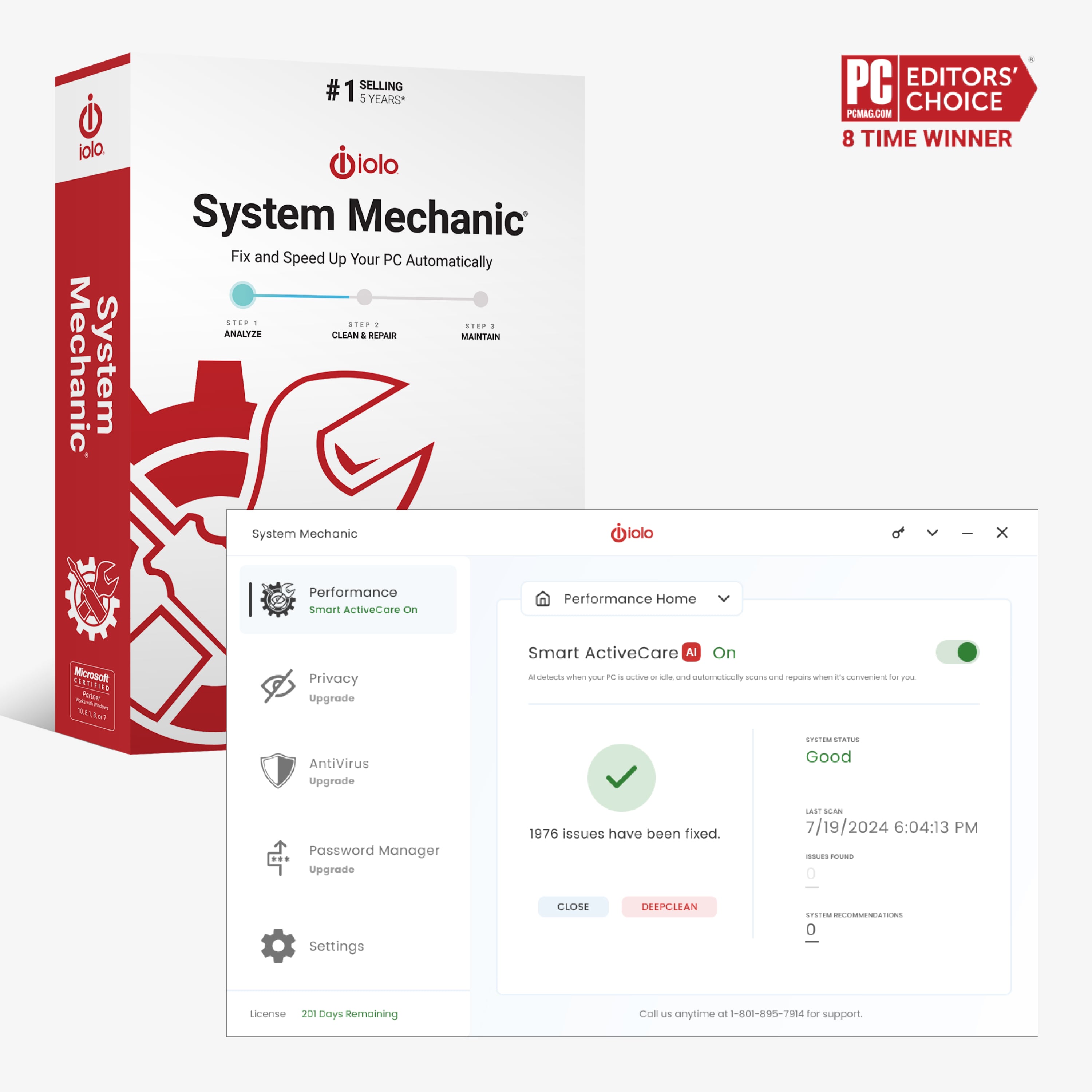
System Mechanic
.png)
.png)
.png)
.png)
.png)
Privacy Guardian
iolo Logo


Style Guide
Campaign CreativeBrand standards for RealDefense-branded and co-branded solutions. Click any guide to open or download.
Note: These guidelines apply to RealDefense-branded and co-branded solutions only. White Label partners should follow their own internal design guides.
Toasters
Campaign CreativeRecommended toaster notification designs based on tested partner performance. Click any image to open full size.
Ideal Toaster Design
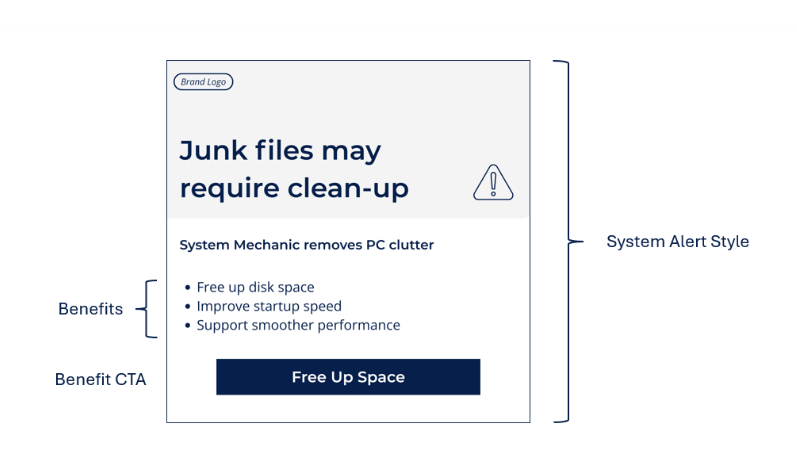
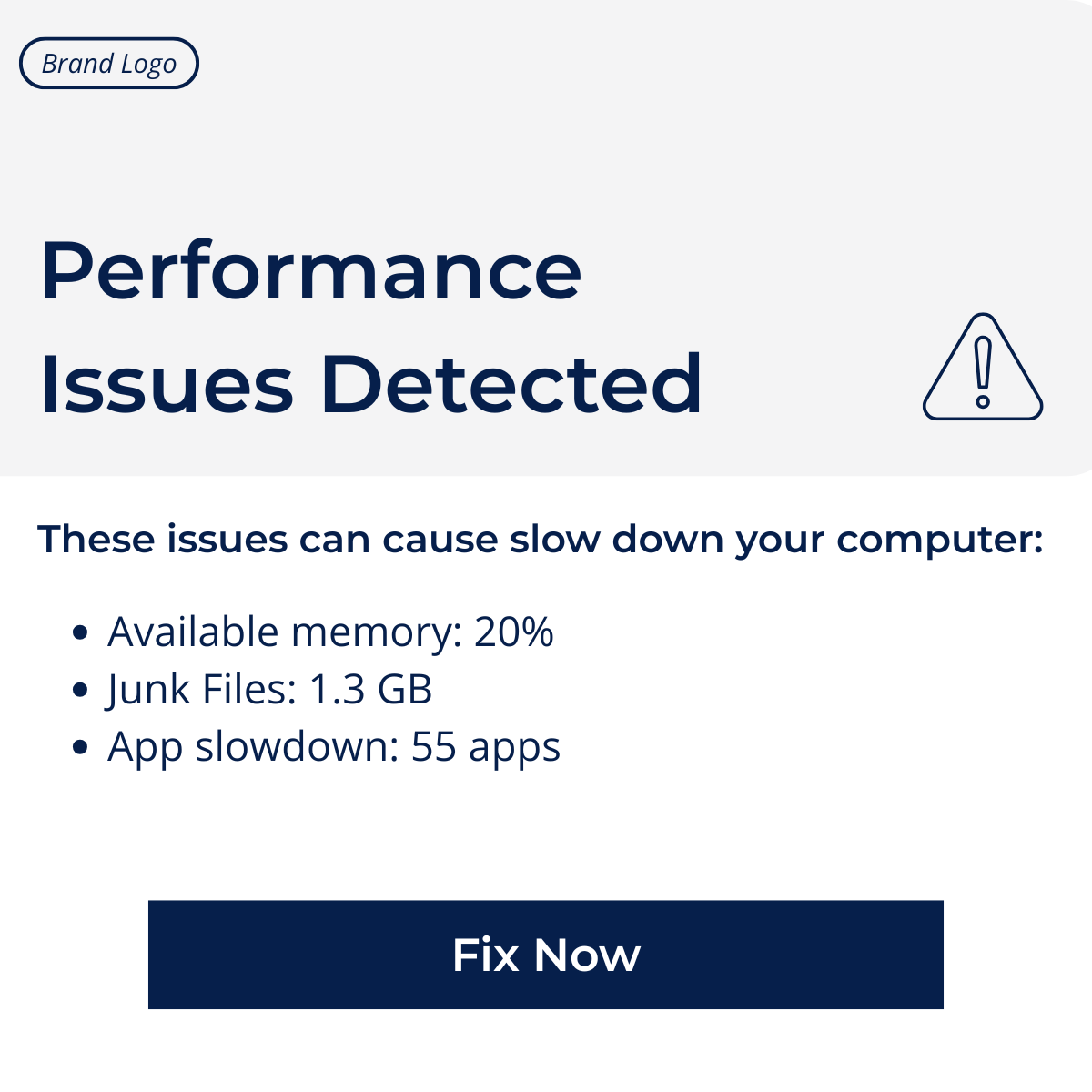
CTA Testing
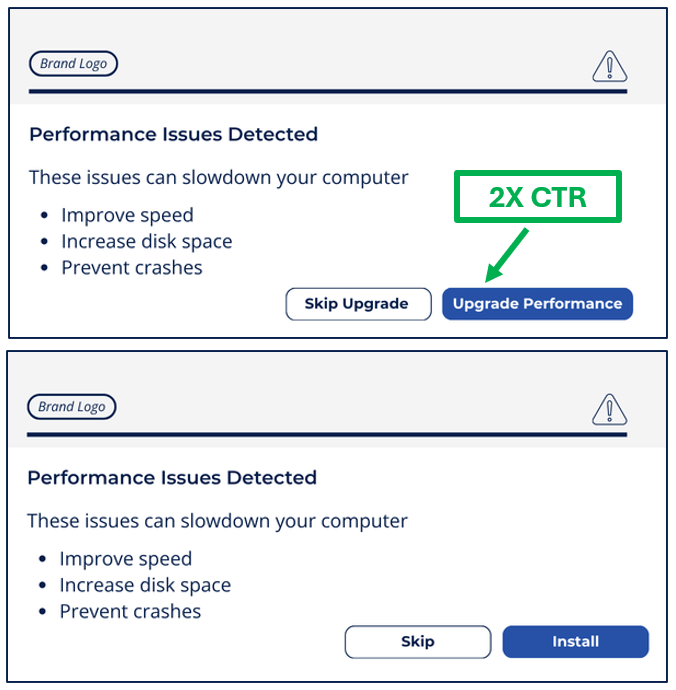
Design Wisdom
Campaign CreativeA/B test results and conversion insights from RealDefense partner campaigns. Click any deck to open or download.